.png)
Preface
This guide is for technicians who are to install Miralix Calendar Import. The technician should have formal training as an IT Supporter or have equivalent qualifications. Furthermore, relevant knowledge of Microsoft Azure, Microsoft Office 365 and Microsoft Entra ID is required.
Miralix Calendar Import collects calendar appointments from Microsoft Office365, enabling Miralix clients to show calendar appointments for internal contacts.
GDPR
The General Data Protection Regulation (GDPR) means that customers who install Miralix software need to consider the scope and duration of data storage.
All Miralix customers are offered a data processing agreement, as Miralix generally has no obligations regarding this data storage.
Prerequisites for Miralix Calendar Import
For Miralix Calendar Import Service to work, some prerequisites must be in place:
Microsoft Entra ID App Registration
An app registration for Miralix Calendar Import must be created:
This app registration must have the following API permissions:
-
Application – Calendars.Read
-
Delegated – User.Read
-
Application – User.Read.All
This is required for Miralix Calendar Import to make extractions from Microsoft Office 365.
Creating an app registration in Microsoft Entra ID
(See the guide “Register a new application using the Azure portal » https://docs.microsoft.com/en-us/graph/auth-register-app-v2 ).
-
Log-in to Azure Portal (https://portal.azure.com/ ) with an admin user.
See figure 1.
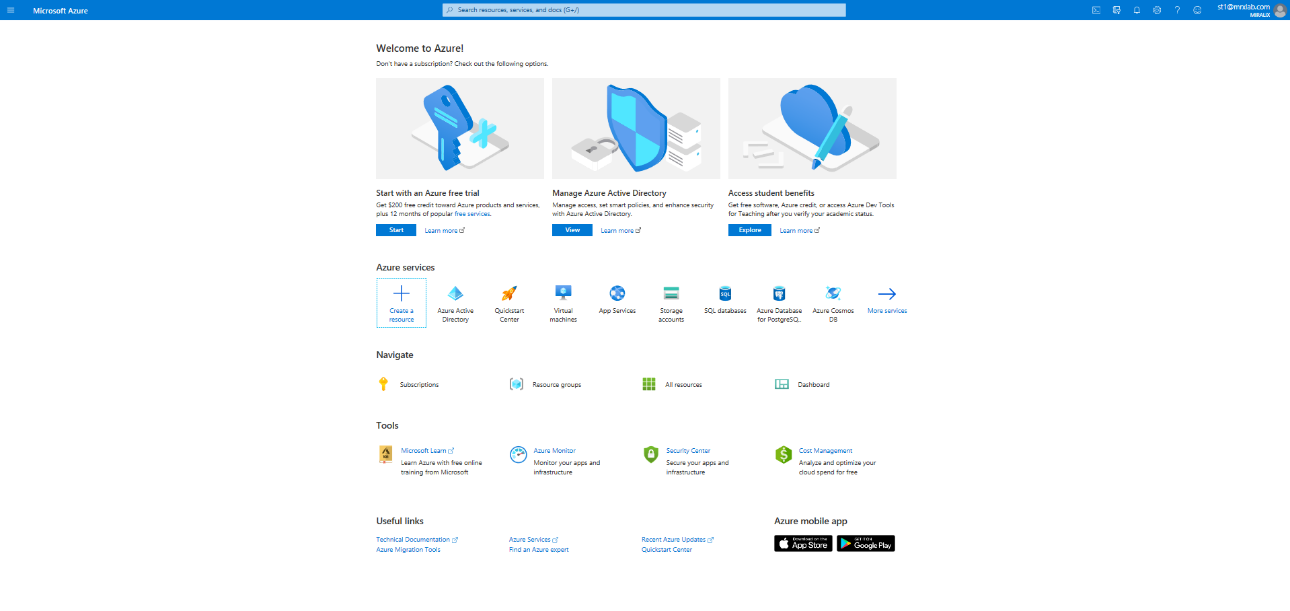
Figure 1
-
Click "Microsoft Entra ID". It is possible to see and copy the tenant ID from the “Tenant information” box in the Overview. See figure 2.
Remember to choose the correct tenant (where Miralix Calendar Import should have access to). It is possible to choose another tenant by clicking “switch tenant” and then choosing the correct account.
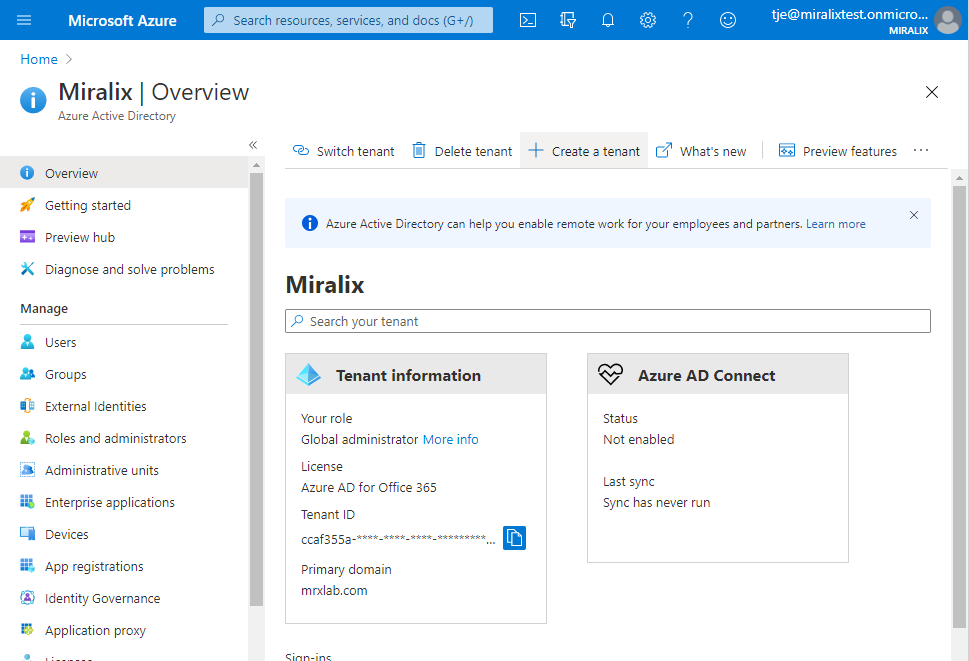
Figure 2
-
Click ”App registrations”, see figure 3. If "Microsoft Entra ID" is not shown, click ”more services”.
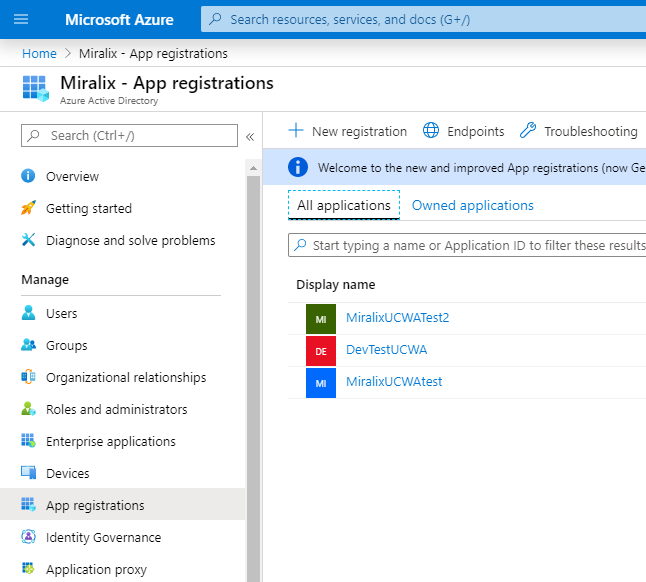
Figure 3
-
For Miralix Calendar Import to retrieve calendar updates, a new application must be registered. Click ”new registration”, enter a name and choose the supported account types to be used.
In the example shown in figure 4, the following is selected:
Name: "Miralix Graph Calendar Import"
Supported account types: " Accounts in this organizational directory only (Miralix only - Single tenant)”
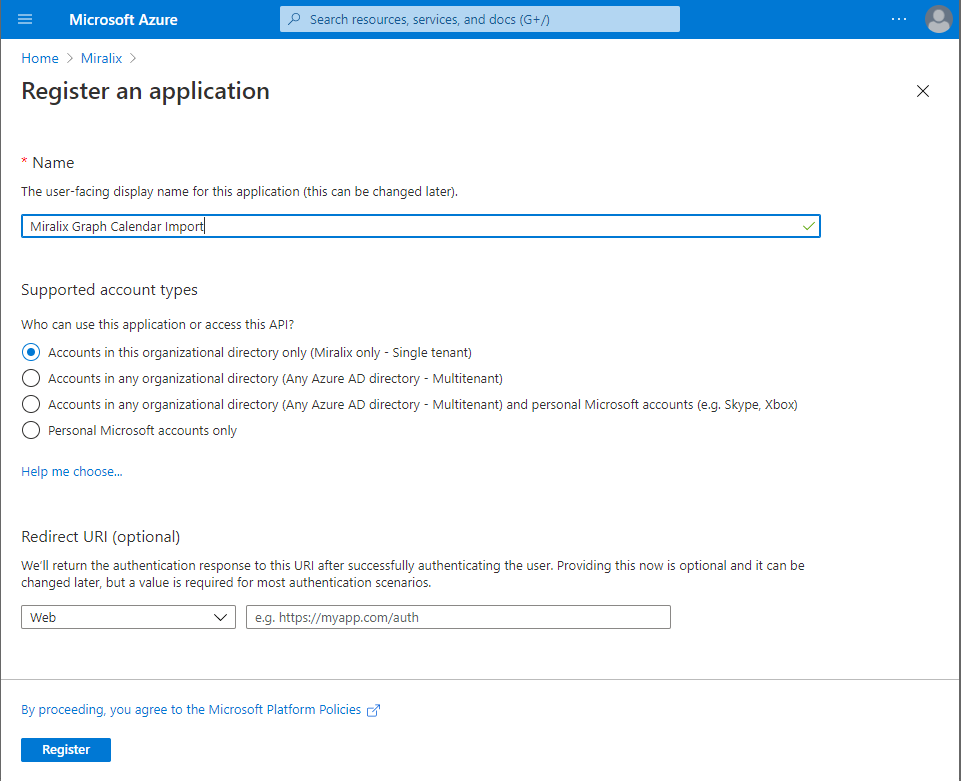
Figure 4
-
Click “register”.
-
It is now possible to see and copy the Client ID from ”Application (client) ID” in the Overview. See figure 5.
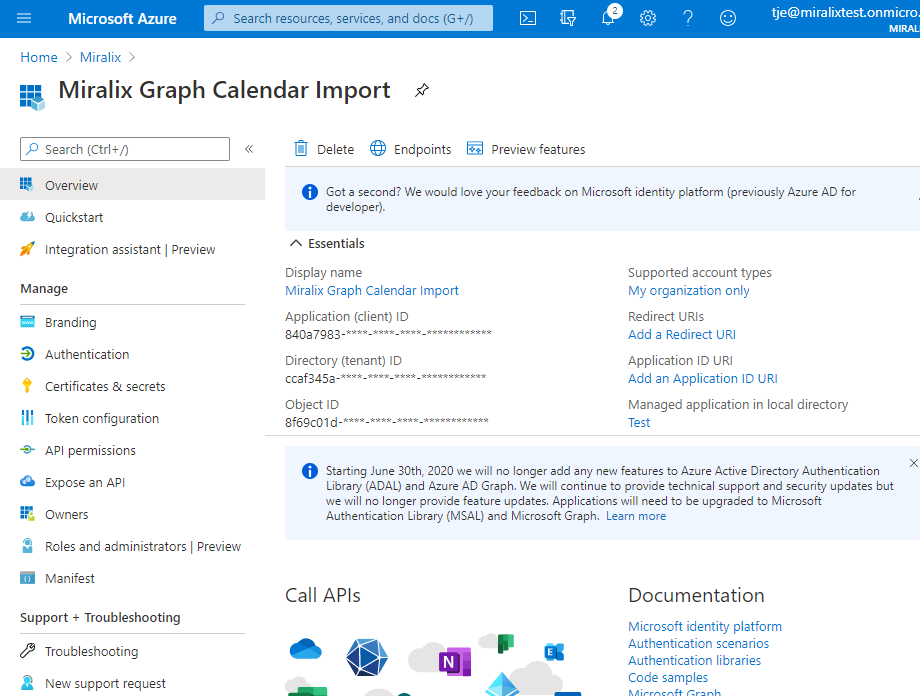
Figure 5
Assignment of rights to Miralix Calendar Import
Rights must be assigned to Miralix Calendar Import for it to make extractions from Microsoft Office 365.
The required rights are:
-
Application – Calendars.Read
-
Delegated – User.Read
-
Application – User.Read.All
-
Open the App Registration that has been created for Miralix Graph Calendar Import
-
Click ”API permissions”
-
Click ”Add a permission” and choose "Microsoft Graph". See figure 6
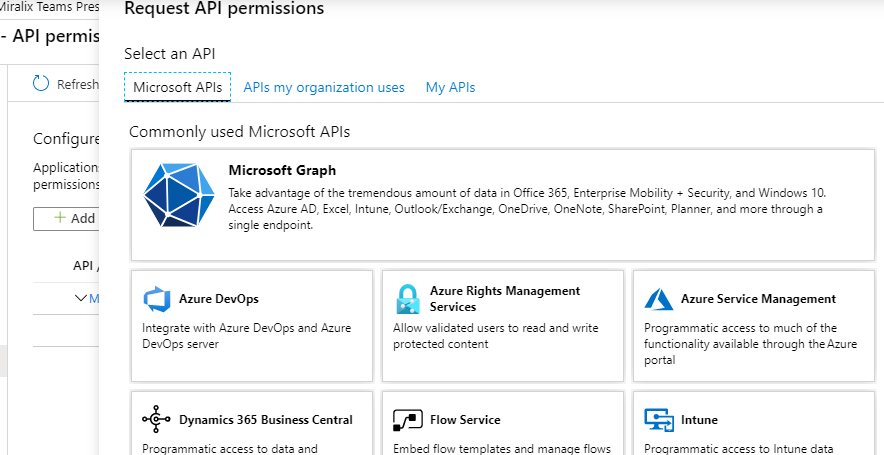
Figure 6
-
Choose "Delegated permissions", search for the User.Read right and select it. See figure 7.
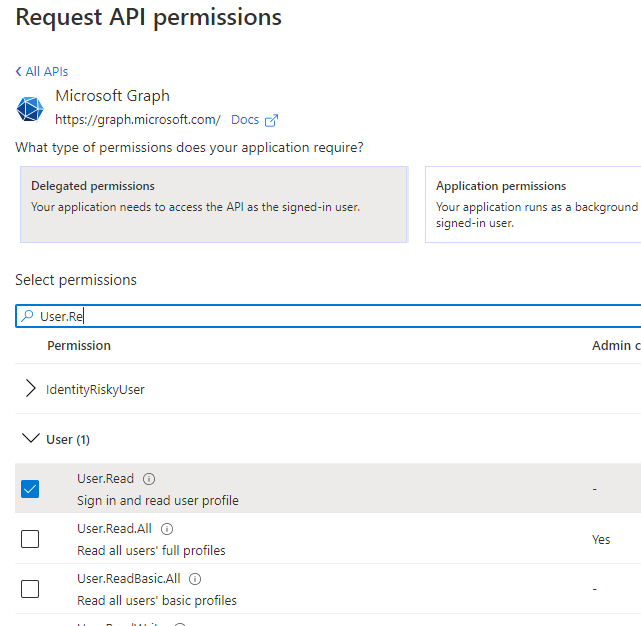
Figure 7
-
Choose ”Application permissions”, search for the User.Read.All and Calendars.Read rights and select them. See figure 8 and 9.
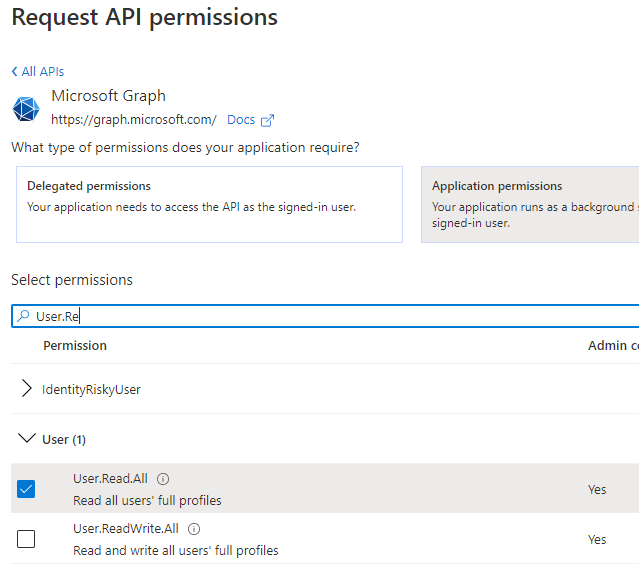
Figure 8
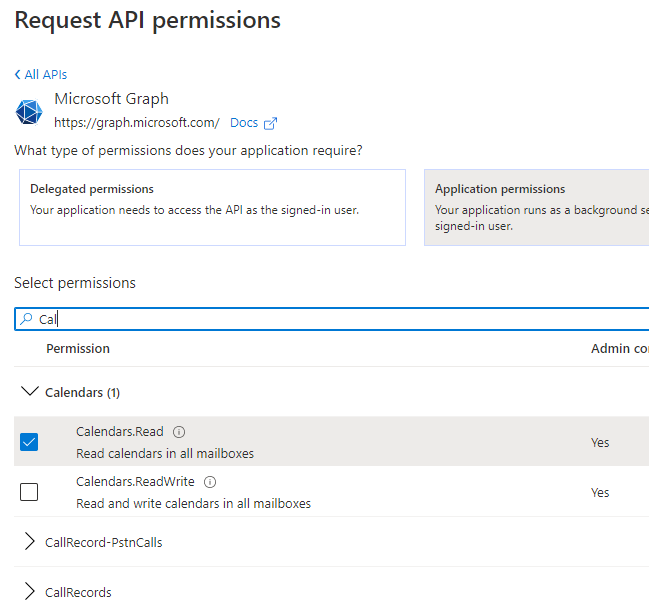
Figure 9
-
Click ”Add permissions”.
Please note: The User.Read.All and Calendars.Read rights require "Grant admin consent for ...", for Miralix Calendar Import to use them correctly.
7Click "Grant admin consent for ..." and click ”Yes” to grant admin consent to all rights. See figure 10.

Figure 10
-
After this, "Granted for …" will be written in front of every permission. See figure 11.
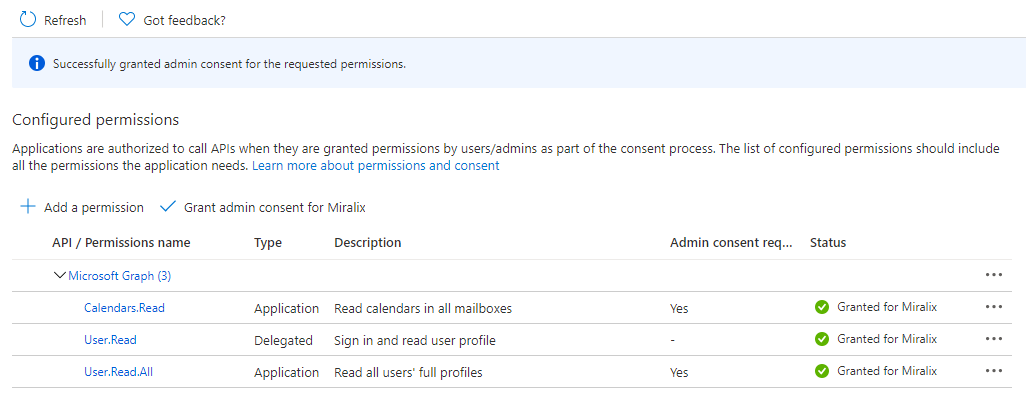
Figure 11
Create a Secret
For Miralix Calendar Import to log-in, a Client Secret for this app permission must be created.
-
Open the app registration that has been created for Miralix Graph Calendar Import
-
Click” Certificates & secrets”
-
In Client secrets, click ”New client secret”
-
Enter a description and choose an expiration date. See figure 12
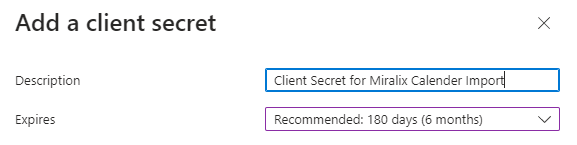
Figure 12
-
Click “Add”
-
Remember to copy the value and save it in a safe place as this Client Secret will only be shown this once.
Please note: If this Client Secret is lost, it is possible to create a new one and update the Client Secret for Calendar Sync Source in Miralix Wrench.
Miralix Calendar Import installation
The necessary prerequisites for Miralix Calendar Import have been created and therefore, the Calendar Import can be installed. Please contact Miralix in order to complete the installation.